AI Assistant
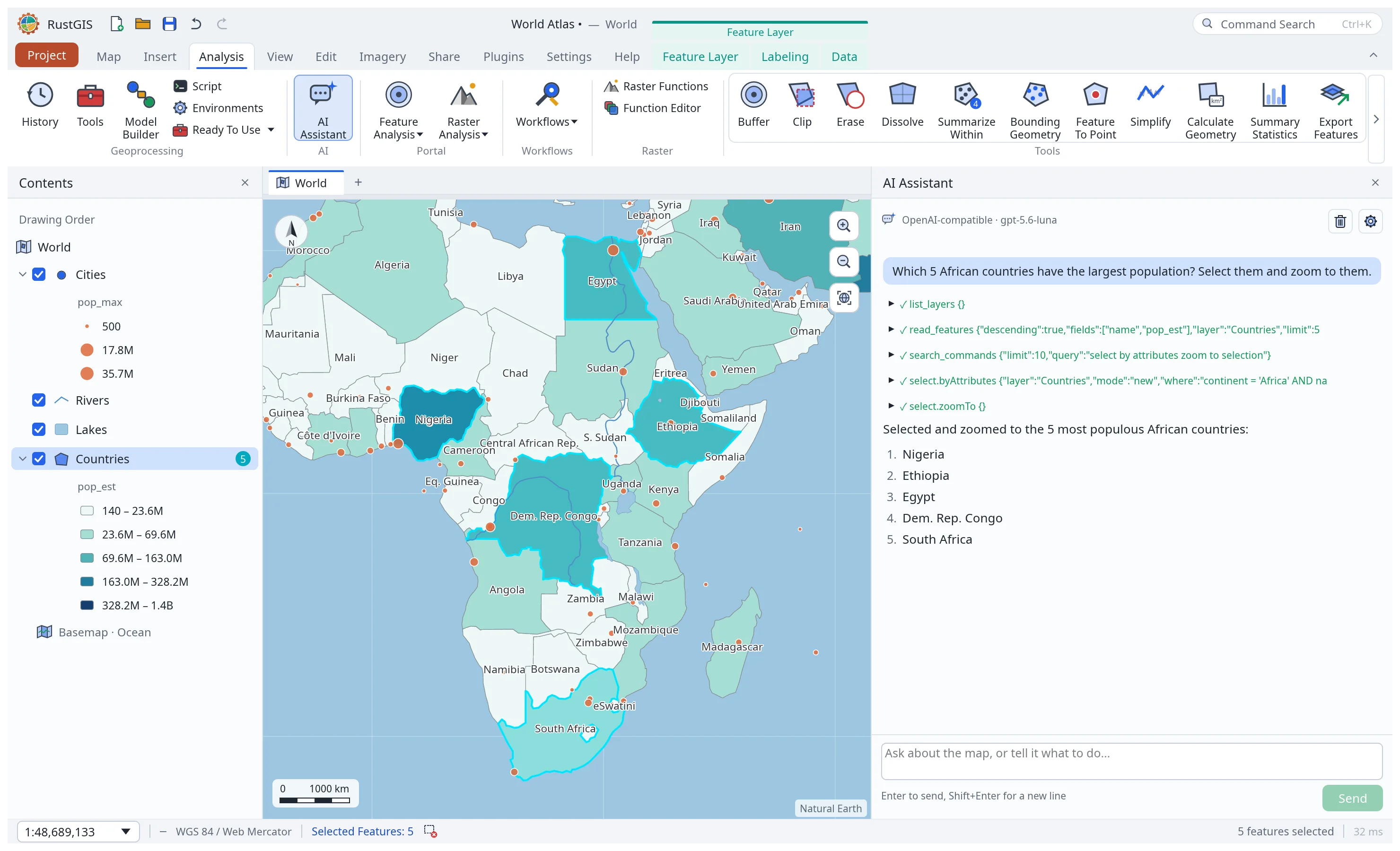
Analysis › AI Assistant (also View › Windows, or Command Search) opens a chat pane. Ask a question about your data or say what to do with the map, and the assistant answers by running RustGIS commands and geoprocessing tools for you:
- "Which 5 countries have the largest GDP?" reads the Countries table and answers.
- "Label the cities with their names, and zoom to Tokyo."
- "Buffer the cities by 200 km and colour the result by population."
- "Switch to a dark basemap and hide the rivers."
Each step it takes shows in the conversation (click one to see its parameters and result), and each change is one undo step, so Ctrl+Z takes back anything you don't want. It never says it changed the map unless a command succeeded. Commands that would read or write files, connect to an address on the internet, run a plugin, script or task, or replace the project wait for you: Allow or Decline. File and network access can be allowed for the rest of the conversation, for that exact command and file or address only. Enter sends, Shift+Enter starts a new line, Up and Down recall earlier messages, and Stop ends a run.
From the command line, rustgis-cli ask sends one request (see
Command Line).
Choosing a model
Click the model name or the gear to open the settings. The assistant works with:
| Provider | Default model | Key |
|---|---|---|
| Anthropic | claude-opus-5-5 |
console.anthropic.com, or ANTHROPIC_API_KEY |
| OpenAI | gpt-5.5 |
platform.openai.com, or OPENAI_API_KEY |
| Google Gemini | gemini-3.8-flash |
aistudio.google.com, or GEMINI_API_KEY / GOOGLE_API_KEY |
| OpenRouter | openrouter/auto |
openrouter.ai, or OPENROUTER_API_KEY |
| Ollama (local) | qwen3 |
none; the server from OLLAMA_BASE_URL (default http://localhost:11434) |
| OpenAI-compatible | — | LM Studio, vLLM, llama.cpp…: the address from OPENAI_COMPATIBLE_BASE_URL, an optional OPENAI_COMPATIBLE_API_KEY |
The ↻ button lists the provider's models. The provider and model you last chose in the settings
are used at start. Until you choose one, RUSTGIS_ASSISTANT_PROVIDER and
RUSTGIS_ASSISTANT_MODEL pick them, and otherwise the desktop uses the first provider with a key
in the environment. Saved settings win over the environment. Models that call tools well give the best results; small local models may stop early or
skip steps.
Privacy
Requests go from RustGIS straight to the provider you chose, with your key. They carry your messages, the map's layer names, fields and extent, and any rows the assistant reads to answer you; nothing goes anywhere else. A key typed in the settings is used for the session only unless you tick Remember the key on this computer, which saves it unencrypted in the app's preferences (in the browser's storage on the web); keys from the environment are never saved. Plain HTTP is only used for servers on your computer or local network.
In the web app, the browser calls the provider directly. Anthropic, OpenAI, Gemini and
OpenRouter accept that; a local Ollama server must allow the page's origin
(OLLAMA_ORIGINS=https://web.rustgis.app ollama serve).